Make your first call in ReBout

This guide walks you through a real exchange: find the clip, slow it down, mark the hit, and share your analysis.

Every screenshot uses real ReBout footage. The controls are the same ones you will use in your Gallery.

Clip analysis
ReBout clip player showing a real longsword exchange, timeline, and annotation controls 1Make your call 2Move frame by frame
01 · CLIPS VS MATCHES

One exchange or the whole match?

A clip is one exchange you can study in detail. A match brings several exchange clips together with the score, fencers, event, and full-bout playback.

Clip One video · one exchange

Review the action

Open a clip when you want replay controls, slow motion, frame-by-frame review, drawings, comments, or a shareable analysis of one exchange.
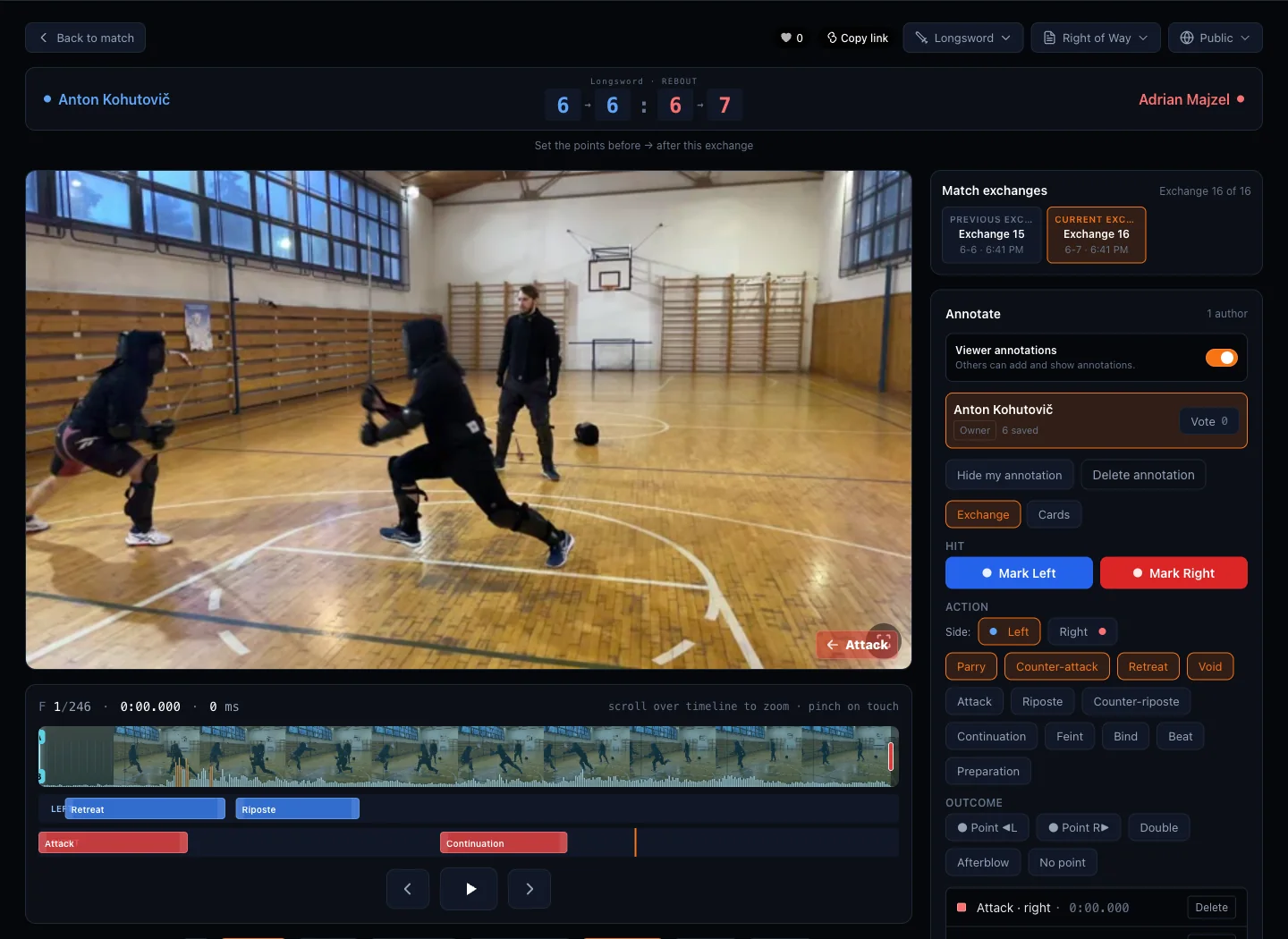
Clip page
A ReBout clip page for reviewing and annotating one exchange 1Replay one exchange 2Annotate the action
Match Several clips · one bout

See the full bout

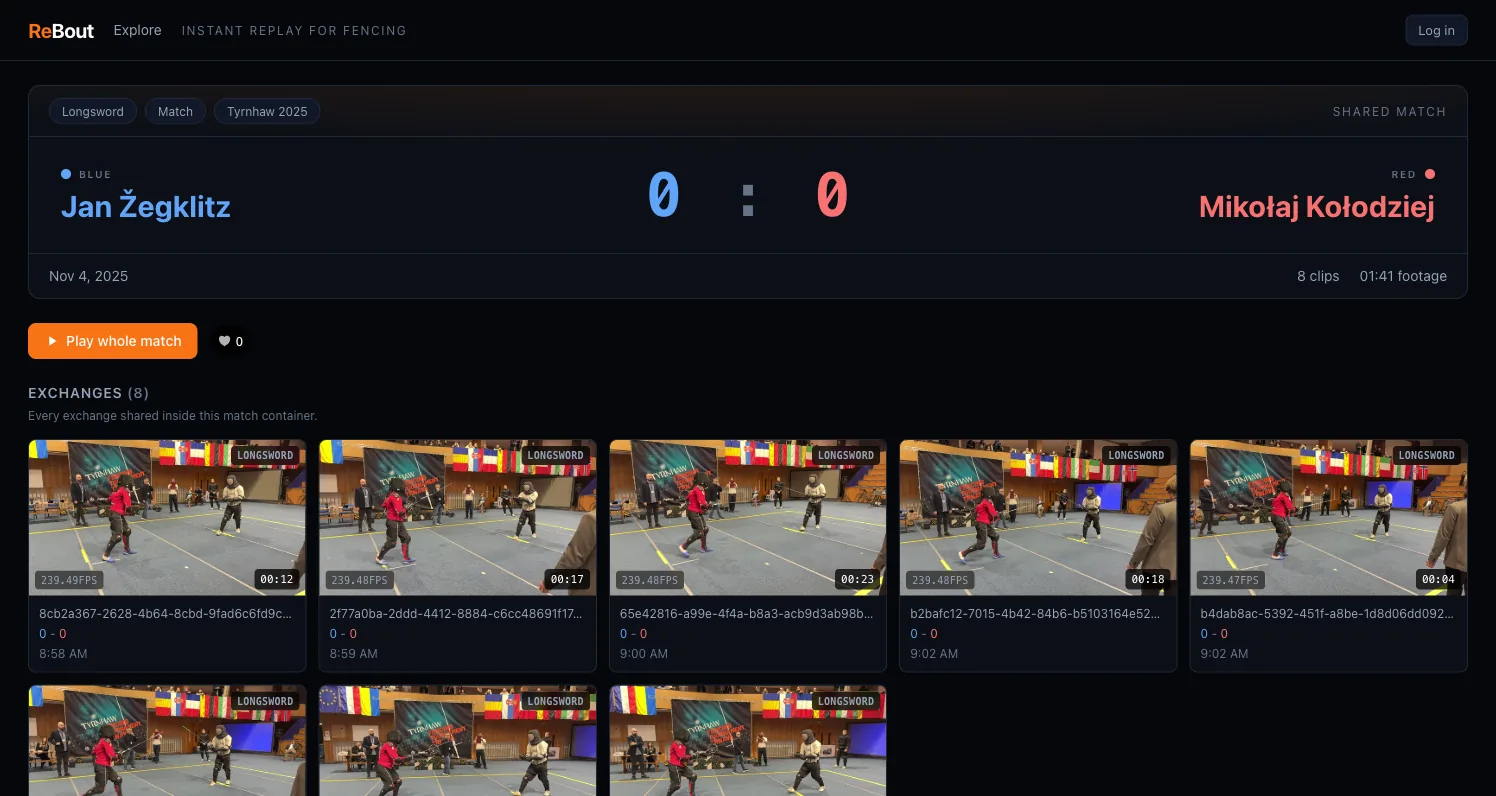
Open a match to see its fencers and score, play every exchange in order, share the whole bout, update match details, or add and reorder exchange clips.

Match page
A ReBout match page with fencers, score, match actions, and its exchange clips 1Match information 2Add exchanges 3All exchanges
Add more exchanges

Build out an existing match

A clip can also stand alone. It only becomes part of a match when you add it there.

  1. 1Open the matchChoose it from your Gallery.
  2. 2Add exchangesUse the orange button above the list.
  3. 3Choose videosUpload one or several exchange clips.
02 · REPLAY

Slow it down. Find the frame.

Pause close to the action, then drag the filmstrip until you can see what happened. Step through it frame by frame, replay a short loop, or lower the speed when the timing is tight.

Exact-frame replay
The ReBout exact-frame player with filmstrip, phrase lanes, and annotation sidebar 1Phrase lanes 2Frame step 3Annotation tools

Move frame by frame

Drag the filmstrip, or use the arrows to move one frame at a time.

Watch it again

Set A–B or turn on Loop to replay the part you are judging.

Slow it down

Switch to 0.25× or 0.5×. You will stay on the same part of the clip.

03 · ANNOTATE

Make a call others can follow

A useful annotation says who acted, what happened, and what you called. ReBout keeps it all on the frame where the action happened.

How to read the hit buttons

The button color tells you who landed

Blue landed the hit

Use the blue Mark button when the blue fencer scores.

Red landed the hit

Use the red Mark button when the red fencer scores.

Left and Right refer to where the fencers are standing on screen. Blue and Red identify the fencer who scored. If they swap sides, the colored buttons move with them.

01

Find the right frame

Pause close to the hit, then use the timeline and frame arrows to find the exact moment. Your next mark will be saved there.

02

Mark the fencer who landed

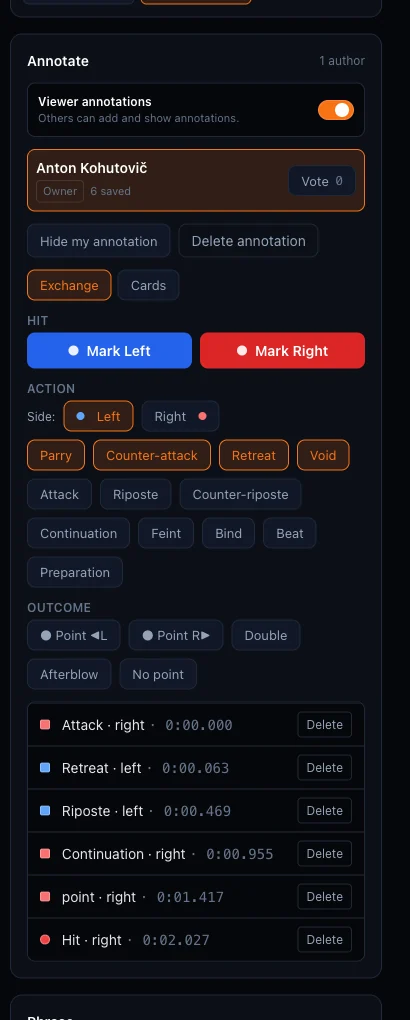
Use the blue or red Mark Left/Right button for the fencer who scored. ReBout adds the hit to the timeline on the frame you selected.

03

Add the action and outcome

Choose the side and action, such as attack, parry, riposte, or afterblow. Then add the outcome. Penalties are under the Cards tab.

04

Check your call, then publish

Read through the saved hit, actions, outcome, and any drawing. When it looks right, select Publish annotation. Other viewers can then see it and vote.

Not ready? Keep it as a draft.

A new annotation is visible only to you. Add at least one event and select Publish annotation when you want others to see it.

Annotation dock
ReBout annotation controls with hit, action, outcome, and saved event options
This real longsword exchange has a published analysis with six events.
TELESTRATION

Draw what the viewer should notice

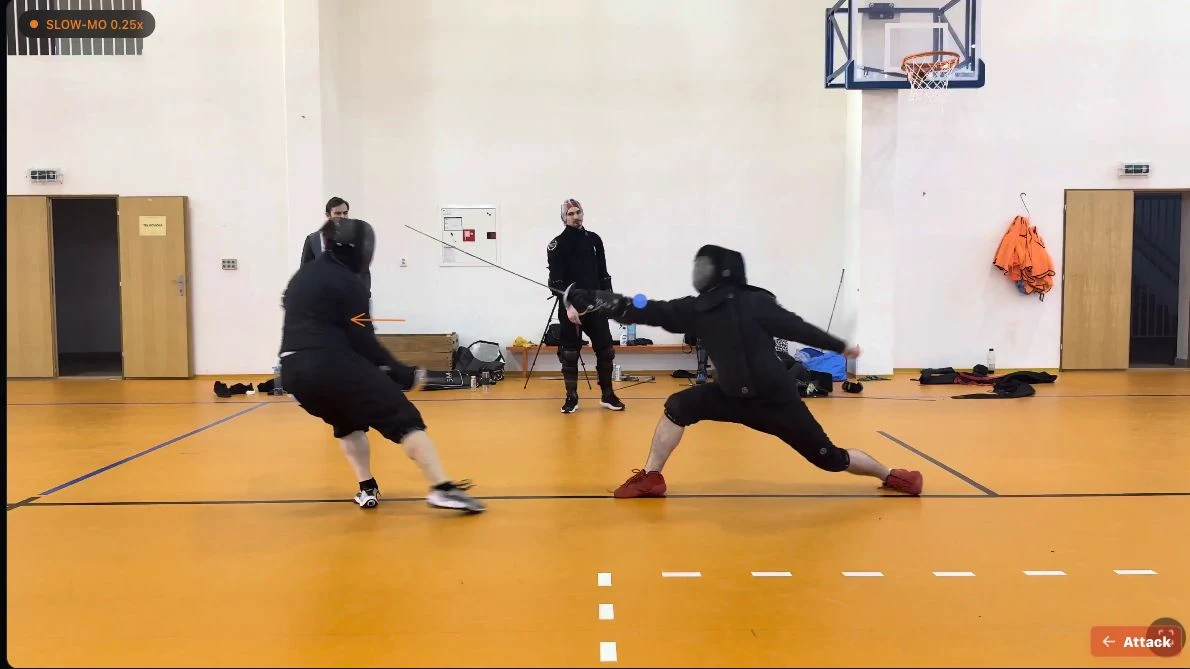
Pause on the frame you want and select Draw on frame. The drawing tools open over the video, so your marks stay tied to that moment.

1

Line or Arrow: choose a color and width. Draw up to eight strokes, then select Save.

2

Hit marker: drag across the hit location, or click once at each end. The marker saves as soon as you place it.

3

Tie it to a hit: select the crosshair beside a saved hit, then place the marker. It uses the same blue or red color as the fencer who scored.

Clear removes the strokes in your current edit. Cancel closes the tools without saving. When playback reaches that frame again, the saved telestration appears.

Anton Kohutovič and Matúš Koronthály in a sabre exchange with a saved orange direction arrow and blue hit marker
× Save Clear Cancel

Choose a tool and draw on the paused frame.

Saved on this frame
This is a real ReBout sabre exchange between Anton Kohutovič and Matúš Koronthály. The orange arrow and blue hit marker are saved to this timestamp, so every viewer sees them on the same frame.
Shared match
A public ReBout match page with real tournament exchanges
04 · SHARE

Share the clip and your call

You can share one clip, a full match, or a coaching folder. Anyone with access can replay it, compare published annotations, vote, and leave comments at specific times.

Public appears in Explore. Unlisted stays accessible only through its link.

Check the visibility first, then use Copy link on the clip or match page.

05 · FENCER PROFILE

Your fencer profile

Every fencer named in a shared match gets a public page at rebout.tsc.sk/fencer/<name> listing their bouts, opponents and events.

If one of them is you, open it and press This is me — once an admin approves the claim, the profile shows your ReBout handle and your bouts link to your account.

Only matches whose owner set them to public appear there; your own unlisted bouts are visible to you alone, marked on the page.

Try it on one exchange

Pick a short clip. Find the hit, mark who landed, and add the outcome. Your first annotation does not need to cover every moment. You can add more later.

Create free account